

 By
By Introduction
Users often face frustrating microphone issues with WhatsApp on iPhones. These problems can disrupt communication and lead to much frustration. But don’t worry; this guide will help you address the issue effectively and ensure your microphone works seamlessly with WhatsApp.
Understanding the Problem
Before diving into solutions, it’s essential to grasp why your iPhone’s WhatsApp microphone might not work.
Common Causes of Microphone Issues
The microphone issues can stem from multiple factors, including software glitches, incorrect app settings, outdated software, or hardware malfunctions. Understanding the root cause is the first critical step in resolving it.
Identifying If It’s a WhatsApp-Specific Problem
To determine the scope of the issue, use apps like Voice Memos to test the microphone. If it operates correctly with other apps, the problem likely lies with WhatsApp’s settings or its current version.
Checking iPhone Settings
Once it’s clear that the problem might be with WhatsApp, the next step is to check your iPhone settings.
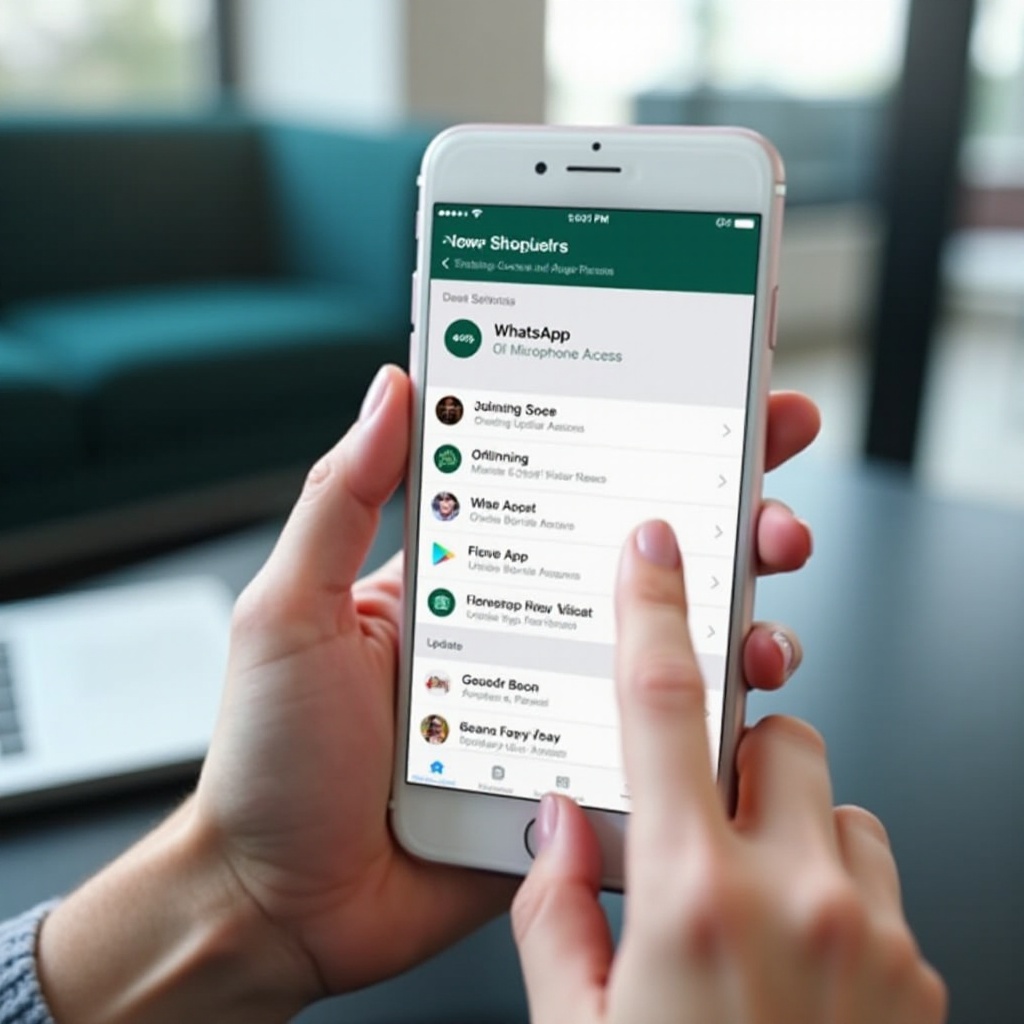
Microphone Access for WhatsApp
- Open the ‘Settings’ app on your iPhone.
- Tap on ‘Privacy’ and select ‘Microphone’.
- Ensure that the toggle next to ‘WhatsApp’ is turned on.
Sound and Volume Settings
Sometimes, volume levels might be causing mic issues. Increase the volume using your iPhone’s side buttons and ensure your device isn’t in silent mode.
Resetting Settings Safely
If these adjustments don’t work:
1. Navigate to ‘Settings > General > Reset’.
2. Tap on ‘Reset All Settings’. Remember, this will restore system settings to default without affecting your data.
Update Apps and iOS
Keeping your software updated is crucial for optimal functionality and proper app performance.
Importance of Updating WhatsApp
Navigate to the ‘App Store’, tap on your profile picture, and find pending updates. Update WhatsApp if an update is pending.
Ensuring Your iOS is Up-to-Date
- Go to ‘Settings’.
- Tap ‘General’, then ‘Software Update’.
- Download and install any available updates.
By updating both the app and iOS, you can resolve existing bugs and enhance app compatibility, potentially fixing the microphone issue.
Basic Troubleshooting
If the problem persists, consider these basic troubleshooting methods.
Restarting the iPhone
- Press and hold the ‘power button’ until the slider appears.
- Slide to power off. After a few seconds, power it back on.
Reinstalling WhatsApp
- Press and hold the ‘WhatsApp’ icon.
- Tap ‘Remove App’, then ‘Delete App’.
- Re-download it from the ‘App Store’.
Addressing App Interference
Disable any background apps that might interfere by double-tapping the home button and swiping up on the running apps.
Advanced Solutions
If basic solutions fall short, these advanced steps might solve the problem.
Resetting Network Settings
- Go to ‘Settings > General > Reset’.
- Tap ‘Reset Network Settings’. Note, this will erase saved Wi-Fi networks and passwords.
Restoring iPhone Settings via iTunes
Connect your iPhone to a computer with iTunes. Select ‘Restore iPhone’ to return it to factory settings. Ensure you back up data to avoid loss.
When to Contact WhatsApp Support
If none of these solutions resolve the issue, contact WhatsApp support via their website or directly within the app for further assistance.
Prevention Tips
Avoid potential microphone issues in the future by following these preventive measures.
Regular App Updates
Ensure your apps, especially WhatsApp, are always up-to-date to benefit from patches and new features, enhancing overall performance.
Regularly Check Phone Settings
Periodically check phone settings to make sure no unintended changes have affected app or microphone performance.
Conclusion
Addressing ‘WhatsApp microphone not working on iPhone’ typically involves minor adjustments or simple troubleshooting. Don’t hesitate to seek professional help from WhatsApp or Apple support when needed to ensure smooth app functionality.
Frequently Asked Questions
Why is my WhatsApp microphone not working even after updates?
Ensure WhatsApp has the necessary permissions in iPhone settings and verify there’s no hardware issue with the microphone.
Can hardware damage cause microphone issues on an iPhone?
Yes, physical damage can lead to issues. It’s advisable to get your device examined by a professional if you suspect damage.
How can I test my iPhone microphone functionality outside of WhatsApp?
Use the Voice Memos app to record and play back audio. This will help you confirm the microphone’s functionality.