

 By
Introduction
Sonos Move is a leading portable Bluetooth speaker, known for delivering exceptional sound and seamless smart home integration. Proper setup is essential to enjoy its full range of features. This guide will take you from unboxing to exploring advanced settings, ensuring you maximize your Sonos Move experience at home or on the go.
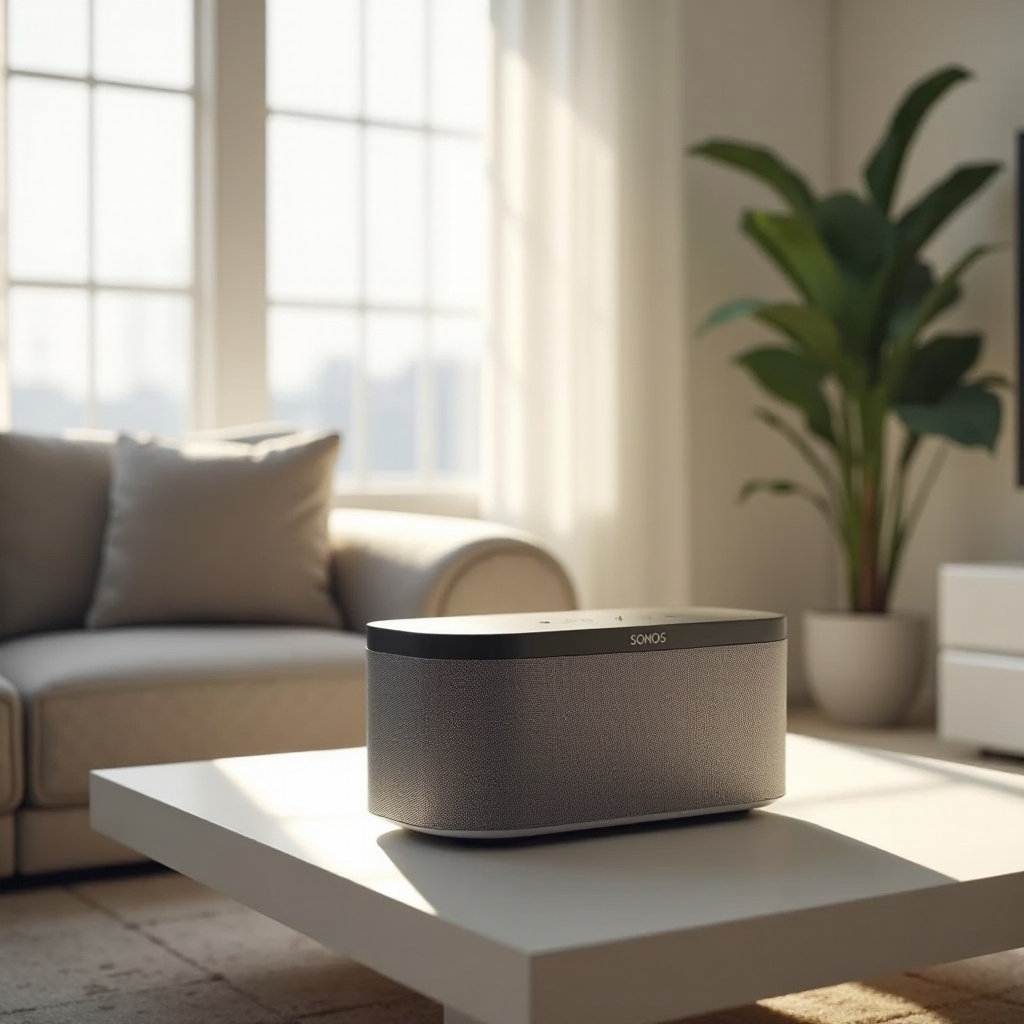
Getting Started with Sonos Move
The journey with your Sonos Move begins the moment you open the box.
-
Unboxing and Initial Setup: Inside, you’ll find the Sonos Move speaker, charging base, power cord, and a quick start guide. Begin by placing the speaker on its charging base to ensure it’s ready for setup.
-
Charging and Powering the Sonos Move: Allow the Move to charge completely before proceeding. Watch for the LED indicator to turn solid, ensuring it’s powered and primed for the next step.
With power secured, you’re ready to establish a stable Wi-Fi connection for seamless streaming and feature access.
Connecting Sonos Move to Wi-Fi
Connecting your Sonos Move to Wi-Fi unlocks superior streaming quality and access to smart features.
- Using the Sonos App for Setup:
- Download the Sonos app on your smartphone or tablet.
- Open the app and either create a new account or log in.
- Follow the prompts to ‘Set up a new system’ and then ‘Add’ your Sonos Move.
This Wi-Fi setup is not just about better audio; it enables smart assistant capabilities and more.
- Troubleshooting Wi-Fi Connection Issues:
Ensure your device is on the correct network and within range. Check your internet connection and restart both your router and the Sonos Move if needed. Most connectivity issues can be resolved with these simple steps.
Once Wi-Fi is configured, you’re ready to explore the freedom of Bluetooth for on-the-go listening.
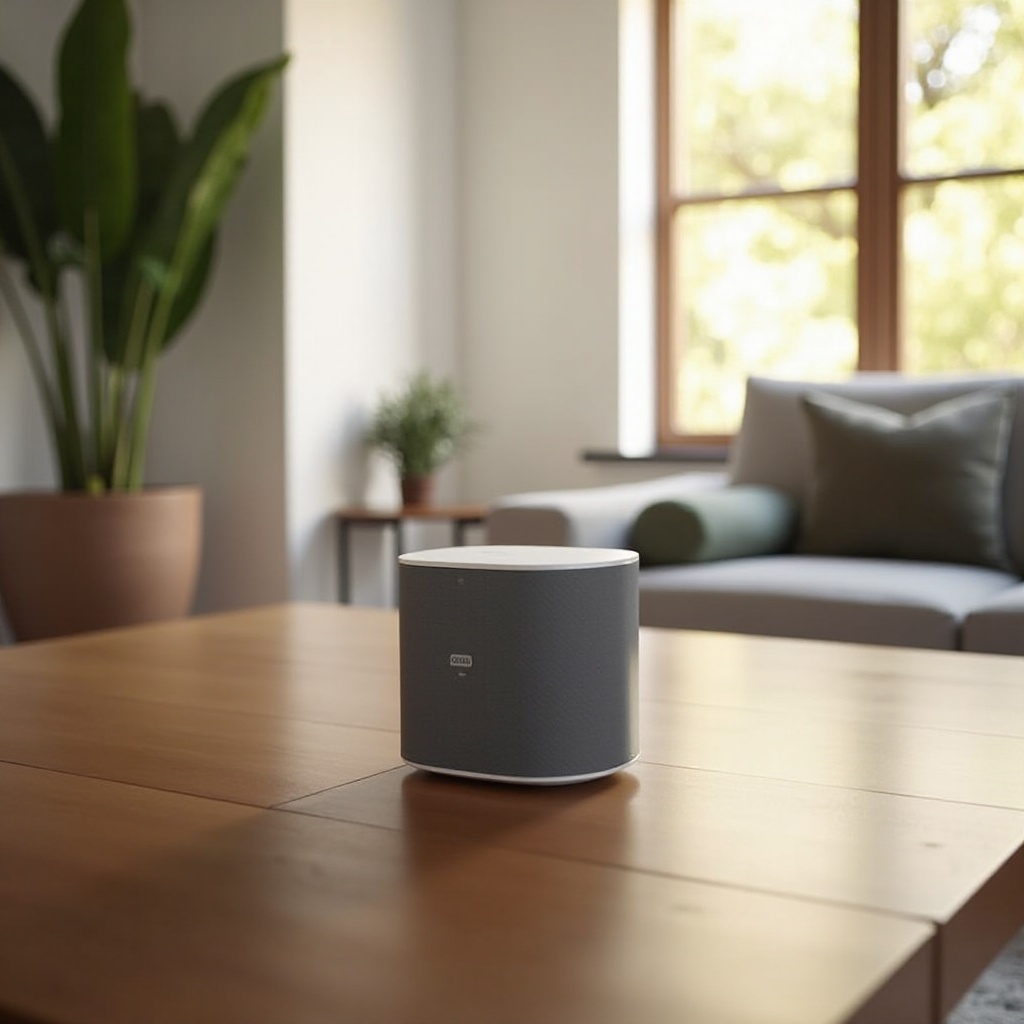
Setting Up Bluetooth on Sonos Move
Bluetooth functionality ensures your Sonos Move delivers exceptional sound wherever you take it.
- Pairing Sonos Move with Bluetooth Devices:
- Press the Bluetooth/Wi-Fi button on the back of the Sonos Move to switch modes.
- Enable Bluetooth on your device and select ‘Sonos Move’ from the available options.
-
Confirm pairing as the LED changes color to indicate connection.
-
Switching Between Wi-Fi and Bluetooth Modes:
Toggle effortlessly between modes using the button on the back of your device. This ensures consistent sound quality whether at home or outdoors.
Both Wi-Fi and Bluetooth provide a gateway to Sonos Move’s rich features, inviting you to explore its full potential.
Exploring Sonos Move Features and Settings
Sonos Move isn’t just about incredible audio; it’s about personalization and smart control.
-
Customizing Sound Settings:
Use the Sonos app to adjust treble, bass, and volume. Trueplay tuning configures the sound automatically, providing optimal acoustic performance based on your environment. -
Utilizing Smart Features and Voice Control:
With Amazon Alexa and Google Assistant support, your voice can manage music playback and interact with other smart home devices. Ensure the mic is active and configured through the app for seamless operation.
Understanding these features enhances your listening experience, but regular maintenance ensures longevity too.

Maintaining Your Sonos Move
Routine care can significantly extend the life and performance of your Sonos Move.
-
Tips for Battery Optimization:
Place it on the charging base when not in use to maintain battery health. If storing the device, keep it half-charged in a cool, dry place. -
Ensuring Longevity and Durability:
Although designed to withstand drops and spills, handle it with care. Clean with a dry cloth and avoid exposure to intense sunlight or moisture for extended periods.
By maintaining your Sonos Move, you’re all set to enjoy its remarkable sound quality for years ahead. Now, let’s recap.
Conclusion
Setting up the Sonos Move is your entryway to an elevated audio environment. We’ve covered each step, from unboxing and Wi-Fi setup to Bluetooth pairing, sound customization, and maintenance. By following these guidelines, you ensure your Sonos Move meets its full potential, providing you with vibrant, high-quality sound in any setting.
Frequently Asked Questions
How do I reset my Sonos Move?
Press and hold the power button for at least five seconds to turn it off. Then, press and hold the connect button while pressing the power button to reset it.
Can Sonos Move connect to two devices at once?
No, the Sonos Move connects to one device at a time, but you can easily switch by disconnecting one device and pairing another.
What should I do if my Sonos Move won’t connect to Bluetooth?
Ensure it’s in Bluetooth mode and your device’s Bluetooth is enabled. Check if another device is actively connected. Restart both the speaker and your device if issues persist.