

 By
By Introduction
Knowing how much RAM your phone has is vital for understanding its performance capabilities and limitations. RAM, or Random Access Memory, directly impacts how smoothly your apps run and how efficiently your phone multitasks. Whether you’re playing a game, using social media apps, or simply browsing the internet, the amount of RAM influences your phone’s speed and responsiveness. This guide will walk you through checking the amount of RAM on both Android and iPhone devices, how much RAM is necessary for your needs, and tips for optimizing your phone’s performance. Let’s dive into understanding your phone better.

What is RAM and Why is it Important for Your Phone?
RAM, short for Random Access Memory, is a type of computer memory that can be accessed randomly, which means any byte of memory can be accessed without touching the preceding bytes. It is used to store data that your phone’s CPU needs quick access to, such as the data for open apps and services.
The importance of RAM lies in its ability to provide your phone with the necessary speed to handle multiple tasks simultaneously. If you have more RAM, your phone can accommodate more apps running in the background without slowing down. For instance, if you enjoy gaming or frequently use intensive apps, having enough RAM ensures smooth performance and swift app switching. On the other hand, insufficient RAM can lead to slower performance, with apps potentially crashing or taking longer to load. Therefore, knowing how much RAM your phone has can help you manage its applications and optimize its performance.
How To Check The Amount of RAM on Your Android Phone
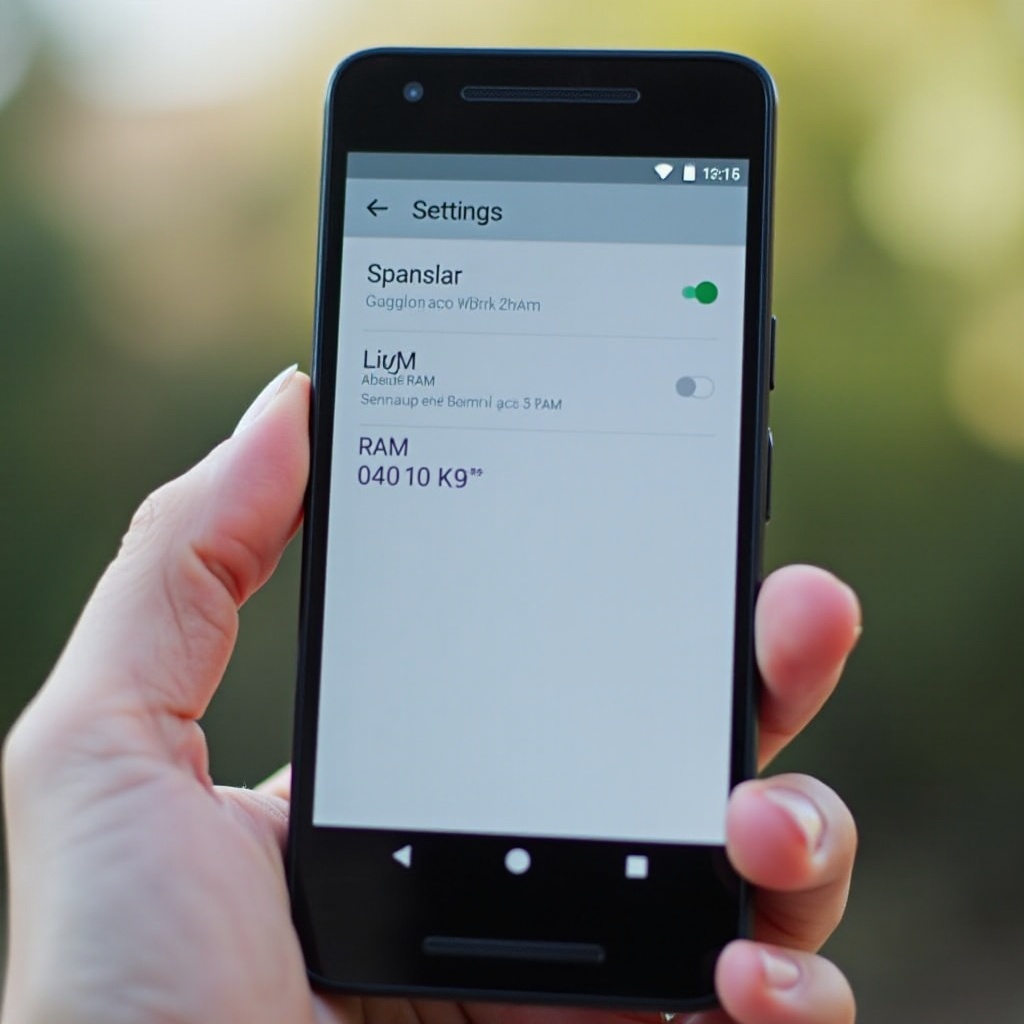
Checking the amount of RAM on your Android phone is a straightforward process. Here are two simple methods for you.
Checking Through Phone Settings
- Open Settings: Navigate to the settings app on your Android phone.
- Go to ‘About Phone’: Scroll down and tap on ‘About Phone’ or ‘System,’ depending on your Android version.
- Find ‘Memory’ or ‘Hardware Information’: Look for sections like ‘Memory’ or ‘Hardware Information’ that should provide details about your phone’s RAM.
Using Third-Party Apps
If the above method does not work or you need more detailed information, consider using a third-party app:
1. Download and Install an App: Apps such as CPU-Z, AIDA64, or DevCheck can provide detailed hardware information.
2. Open the App and Navigate to RAM Information: These apps usually have a ‘Memory’ or ‘RAM’ section where you can find out exactly how much RAM your phone has.
Both methods are user-friendly and deliver accurate information about your Android device’s RAM.
How To Check The Amount of RAM on Your iPhone
For iPhone users, finding out how much RAM you have isn’t as straightforward as on Android, but it can still be done.
Checking Through Phone Settings
- Open Settings: Launch the Settings app on your iPhone.
- General > About: Tap on ‘General’ and then ‘About’.
- Check for RAM Info: Some iPhone models may list memory information here, but in most cases, it’s not directly displayed.
Using Third-Party Apps
Given the limitations in the settings:
1. Download and Install Third-Party App: Apps like Lirum Device Info Lite or Geekbench are recommended.
2. Open the App: Navigate to sections that specify ‘RAM’ or ‘Memory’. By using these apps, you can get a detailed breakdown of your iPhone’s RAM and other hardware specifications.
Using these methods, iPhone users can gain insight into their device’s memory capacity, which Apple sometimes conceals in standard settings.
How Much RAM Does Your Phone Need?
Determining the right amount of RAM for your phone depends on your usage patterns. Here’s a general guide:
- 2GB to 3GB RAM: Suitable for basic usage such as calling, texting, and light app usage. Good for budget smartphones.
- 4GB to 6GB RAM: Ideal for moderate users who run social media apps, multitask, and play light to medium intensity games.
- 8GB and above RAM: Perfect for power users who run high-intensity games, significant multitasking, and use demanding apps.
In a nutshell, more RAM ensures better multitasking and faster app performance. Assess your usage to determine the best RAM choice for you.

Tips for Optimizing Your Phone’s RAM
Even with ample RAM, optimizing its use can lead to more efficient phone performance. Here’s how:
Reducing RAM Usage
- Uninstall Unnecessary Apps: Remove apps you don’t use regularly.
- Disable Background Services: Turn off background processes that aren’t essential.
Best Practices for Keeping Your Phone Efficient
- Restart Regularly: Restarting your phone can clear RAM and improve performance.
- Close Unnecessary Apps: Don’t let apps stay open if they are not in use.
Using Applications to Optimize RAM
- Install Optimization Apps: Apps like ‘Greenify’ for Android and ‘Battery Doctor’ for iPhone can help manage and reduce RAM usage.
- Monitor RAM Usage: Regularly use these apps to keep an eye on which applications consume the most RAM.
By following these steps, you can ensure your phone runs smoothly and efficiently, making the most of its available RAM.
Conclusion
Understanding your phone’s RAM capacity and managing it well are crucial for optimal device performance. Whether you own an Android or iPhone, knowing how much RAM you have and taking steps to optimize it can significantly enhance your user experience. Stay proactive in managing your device’s RAM for a seamless, efficient, and enjoyable smartphone experience.
Frequently Asked Questions
Can I upgrade the RAM on my phone?
No, most modern smartphones have their RAM soldered onto the motherboard, making it impossible to upgrade post-purchase.
Does more RAM make my phone faster?
While more RAM can help with multitasking and running intensive apps, it’s only one factor in overall phone performance. Other components like the CPU also play a significant role.
What should I do if my phone is running slowly despite having plenty of RAM?
Consider clearing cache, uninstalling unnecessary apps, and periodically restarting your phone. If the problem persists, a factory reset might help restore performance.