

 By
By Introduction
The Apple Watch is more than just a timepiece; it’s a personal assistant strapped to your wrist. However, encountering the frustrating problem of your Apple Watch glitching out can disrupt its seamless operation. From frozen displays to syncing problems, these issues can significantly impact your daily routine. In this guide, you will discover how to identify common glitches, employ effective repair strategies, and engage in preventive measures to keep your Apple Watch functioning optimally.
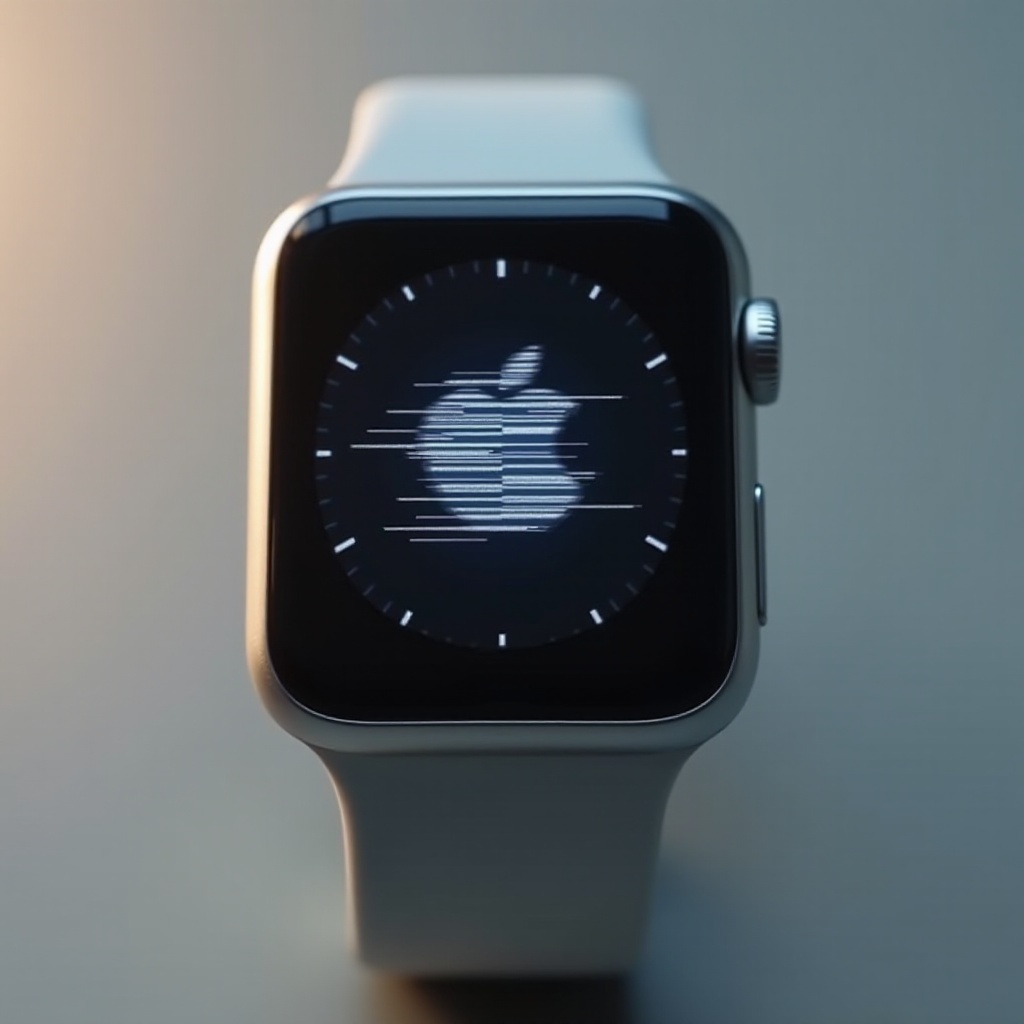
Understanding the Common Glitches
To address Apple Watch glitches effectively, you first need to understand the issues you might face. Identifying these problems allows for more targeted solutions:
- Display and Interface Issues: If you’ve experienced a lagging touchscreen or a flickering display, these could be the result of software bugs or memory overload.
- Connection and Syncing Problems: Is your watch struggling to maintain a connection with your iPhone or consistently dropping from Wi-Fi? Such issues might arise from outdated software or network interference.
- Battery Performance and Charging Glitches: Rapid battery drain or charging difficulties might stem from background apps excessively consuming power or possible hardware errors.
Grasping these common problems sets the stage for practical troubleshooting.
Quick Fixes for Apple Watch Glitches
Sometimes, the simplest approaches can solve the most persistent glitches. Implement these quick fixes to potentially restore your watch’s optimal performance:
- Restarting and Soft Resetting Your Apple Watch:
-
By pressing and holding the side button until the sliders appear, you can drag the Power Off slider. Wait a few seconds, then restart your watch.
-
Updating WatchOS to the Latest Version:
-
Software updates often contain fixes for known glitches. On your iPhone’s Watch app, check for the latest version and update your Apple Watch to rectify issues.
-
Adjusting Settings for Improved Performance:
- Navigate to Settings > General > Background App Refresh and disable non-essential apps. This adjustment can help conserve battery life and lessen the operational load.
While quick fixes can resolve immediate issues, some challenges might necessitate more advanced strategies.
Advanced Troubleshooting Techniques
When initial solutions fail to resolve your Apple Watch’s problems, it may be time to explore advanced troubleshooting measures:
- Performing a Factory Reset:
-
For persistent errors, a full factory reset can help. Access Settings > General > Reset > Erase All Content and Settings to restore your watch to its original state. Ensure your data is backed up first.
-
Reinstalling Applications:
-
Occasionally, malfunctioning applications may cause these glitches. Uninstall the problematic app and reinstall the latest version from the App Store.
-
Using Apple Support Diagnostics:
- Apple offers diagnostic tools to scrutinize your watch’s health and functions. Reach out to Apple Support online or via their app to use these resources.
These techniques require a deeper dive into your Apple Watch’s functionality, preparing you for more significant malfunctions. However, some situations require professional expertise.
When to Visit an Apple Store
Occasionally, your Apple Watch’s issues might be manifestations of serious hardware malfunctions that require expert diagnosis. Here’s when to consider professional assistance:
- Identifying Hardware Issues: If glitches persist even after performing a factory reset, the underlying cause might be intrinsic hardware problems.
- Warranty and Repair Options: Verify your watch’s warranty status with Apple. If applicable, you might receive a cost-free repair or replacement. For support, contact your nearest Apple Store or an authorized service provider.
Knowing when to seek professional help is crucial, but preemptive strategies can help minimize these visits.
Preventative Measures to Avoid Glitches
Preventing glitches is preferable to troubleshooting them. Adopt these techniques to keep your Apple Watch running flawlessly:
- Regular Software Updates: Keep your WatchOS updated with the latest version for performance enhancements and bug fixes.
- Proper Care and Maintenance Tips: Avoid exposing your watch to extreme temperatures, clean the sensors regularly, and use certified charging equipment to prevent hardware-related issues.
Following these proactive practices can help lengthen the life of your Apple Watch and minimize future disruptions.
Conclusion
Apple Watch glitches can turn this convenient gadget into a frustrating device. However, by identifying potential issues, implementing quick and advanced fixes, and knowing when to contact a professional, you can efficiently address these setbacks. Maintain your watch with regular software updates and proper care, ensuring its reliable performance for days to come.
Frequently Asked Questions
How can I tell if my Apple Watch issue is software or hardware related?
Attempt a factory reset or software update. Persistent issues after these steps often indicate hardware problems.
What should I do if my Apple Watch keeps restarting?
Inspect for software updates initially. If no updates are available, perform a factory reset. Persistent restarts may require professional evaluation.
How often should I update my Apple Watch software?
Install regular updates as soon as they’re available to ensure your watch benefits from performance improvements and security fixes.