

 By
By Introduction
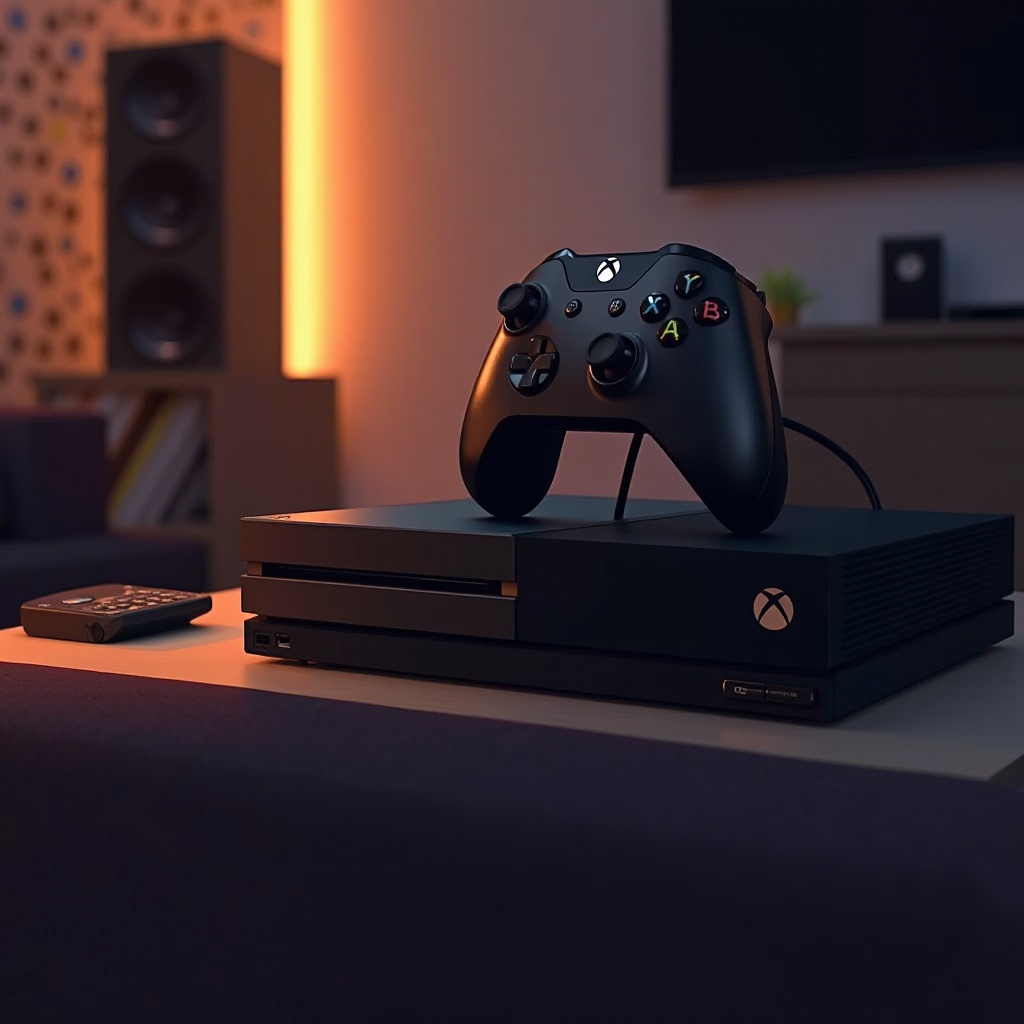
Achieving an immersive gaming experience on Xbox One involves more than just stunning visuals; high-quality audio plays a crucial role. By connecting an external speaker system, you can enhance in-game sounds from subtle footsteps to thunderous explosions. This guide takes you through the process of connecting speakers to your Xbox One, offering clear, actionable steps and troubleshooting advice.
Understanding Xbox One Audio Options
Before diving into the setup, it’s vital to get acquainted with the audio capabilities of your Xbox One. While built-in sound might suffice for some, external speakers can significantly elevate the auditory experience.
Built-in Audio Capabilities
Xbox One is equipped with built-in audio outputs including HDMI and optical ports, which provide standard sound quality. These are convenient for basic setups but don’t quite match the auditory depth offered by external sound systems.
Benefits of Using External Speakers
External speakers are your gateway to a more dynamic and engaging sound experience. They offer enhanced audio clarity, richer bass, and a surround sound feel that brings games to life.
Having covered the inherent audio options, let’s prepare to set up your external speakers for optimal performance.
Preparing to Connect Your Speakers
Preparation is key to ensuring your speaker setup process is smooth and hassle-free. Confirm that you have all necessary components, and conduct a quick compatibility check.
Necessary Equipment and Cables
Gather these essentials to get started:
– HDMI cables
– Optical audio cables (for compatible systems)
– Bluetooth adapter (if opting for wireless connection)
– Power cables for your speakers
Compatibility Checks
Ensure your speakers align with Xbox One’s output options. Verify available inputs on your sound system and confirm their compatibility with your chosen connection method to avoid potential setup issues.
Once you’re prepared with the necessary equipment and compatibility is confirmed, it’s time to proceed with the connection process.
Step-by-Step Guide to Connecting Your Speakers
This section provides three different methods to connect your external speakers, catering to a variety of preferences and technical setups.
Using HDMI Connection
- Connect one end of an HDMI cable to the HDMI Out port on Xbox One.
- Plug the other end into the HDMI In port of your audio system or AV receiver.
- Power on your AV equipment and ensure it’s set to the correct HDMI channel.
- Access Xbox One settings, navigate to ‘Display & Sound’, select ‘Audio Output’, and choose ‘Stereo uncompressed’.
Setting Up with Optical Audio Cable
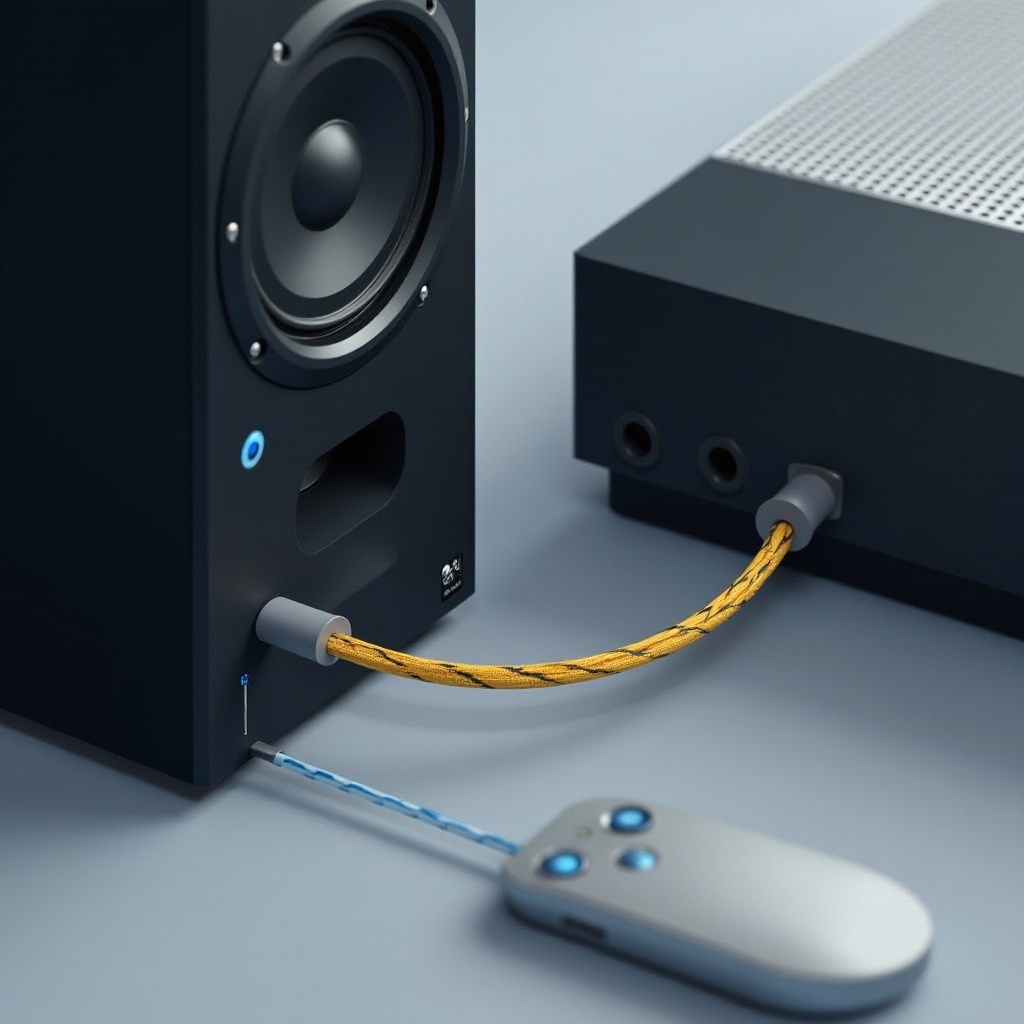
- Insert the optical audio cable into the Optical Out port on Xbox One.
- Connect the other end to your speaker system’s optical input.
- Head to Xbox settings, select ‘Display & Sound’, then ‘Audio Output’; set optical audio to ‘Bitstream out’.
- Choose ‘Dolby Digital’ under Bitstream format.
Using Bluetooth with an Adapter
- Connect a Bluetooth audio adapter to the Xbox One’s USB or optical port.
- Activate pairing mode on the adapter, indicated by a blinking LED.
- Switch your Bluetooth speakers to pairing mode.
- Once both devices connect, adjust Xbox audio settings to suit the Bluetooth output.
Following these steps ensures a successful connection that enriches your gaming adventures with superior sound.
Troubleshooting Common Issues
Sometimes, despite meticulous setup, issues can arise. Here’s how to handle some of the most common problems.
No Sound Output
- Double-check all cable connections.
- Confirm your speaker system is turned on and set to the right input.
- Ensure Xbox audio settings match your connection.
Audio Delays or Lag
- Prefer direct connections for minimal lag.
- Restart your Xbox and speakers if delays persist.
- Verify your internet connection if streaming.
By addressing these issues promptly, you can maintain an uninterrupted audio experience.
Tips for Optimizing Sound Quality
After establishing a connection, optimizing your setup can enhance the sound quality further.
Adjusting Xbox Audio Settings
Ensure Xbox’s audio settings align with your speaker’s capabilities, such as selecting Dolby Digital for supporting systems, to unleash potential audio clarity.
Ideal Speaker Placement
Position speakers at ear level, angled towards the primary listening area, and keep them clear from obstructions. This optimal placement delivers an immersive audio experience.
These tips will help you refine your setup, ensuring crystal-clear sound throughout your gaming sessions.
Conclusion
Connecting external speakers to Xbox One transforms your gaming experience, elevating sound to a new level. By following this guide, you can easily equip your gaming setup with superior audio, enhancing every gaming session with immersive quality.
Frequently Asked Questions
What types of speakers are compatible with Xbox One?
Most speakers with HDMI, optical, or Bluetooth capabilities are compatible with Xbox One, given the right adapters and cables.
Can I use wireless speakers directly with Xbox One?
Yes, wireless speakers can be used with a Bluetooth adapter, allowing for seamless connection.
How do I ensure the best sound quality from my speakers?
Use high-quality cables, configure Xbox audio settings to match your system, and position speakers correctly for balanced audio output.