

 By
By Introduction
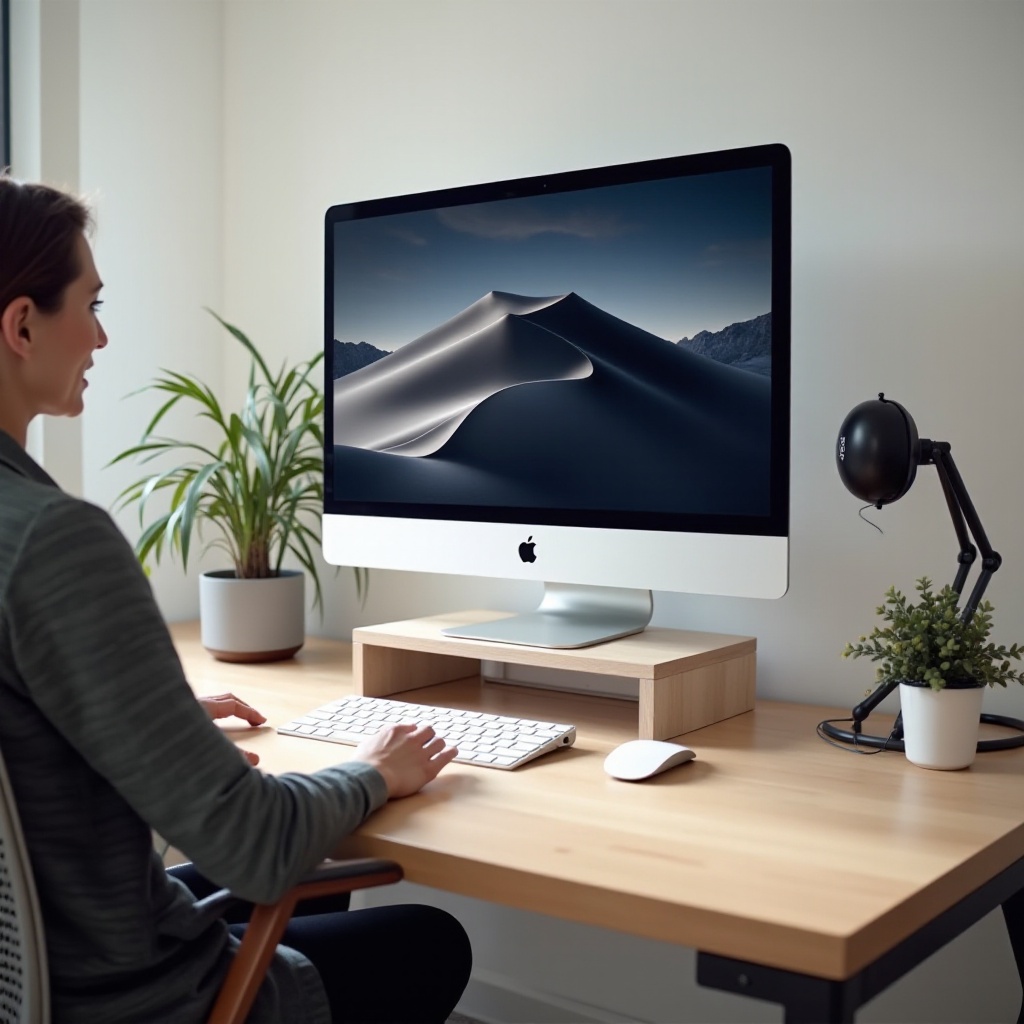
Consider transforming your iMac setup by adding a second display. Doing so can amplify your efficiency, broaden your workspace, and foster greater creativity. Whether you’re a graphic designer, a coder, or an entrepreneur, a second display can cater to diverse professional needs. In this article, we’ll guide you through finding the perfect companion screen for your iMac.
Benefits of a Second Display for iMac
A secondary monitor can revolutionize your workflow, serving as both a convenience and a powerful productivity tool.
Increased Productivity
Having an additional screen enables you to manage multiple projects simultaneously. For example, you can write a report on one screen while researching on another, all without switching tabs constantly. This functionality optimizes your efficiency and helps you stay organized in demanding job environments.
Enhanced Multitasking
Multitasking becomes more manageable with two displays. You can be on a video call while taking notes or comparing data from various sources in real-time. The ease of juggling different applications on separate screens makes your tasks seamless and more intuitive.
Improved Creative Workspaces
A second monitor is invaluable for creative professionals. Imagine having your design tools open on one screen and your creation on another. This setup provides an expanded workspace that reduces window toggling, allowing you to concentrate better and work more fluidly.
What to Look for in a Second Display
Choosing the ideal second display involves several critical considerations to ensure it aligns with your iMac and meets your usage requirements.
Display Size and Resolution
Consider your space and the clarity you desire. Larger monitors with high resolutions like 4K provide extensive real estate and improved clarity, which is beneficial for detailed tasks like video editing or graphic design.
Connectivity Options
Ensure the monitor has the right ports to connect effortlessly to your iMac. While USB-C and Thunderbolt offer quick data transfers, HDMI and DisplayPort are also viable options, though they may necessitate adaptors on some iMac models.
Color Accuracy and Display Technology
High color accuracy is vital, particularly for those in creative fields. Monitors with IPS technology generally provide better color consistency and viewing angles. Use calibration tools to align display colors across monitors for cohesive workflow.
Top Picks for Best Second Displays for iMac
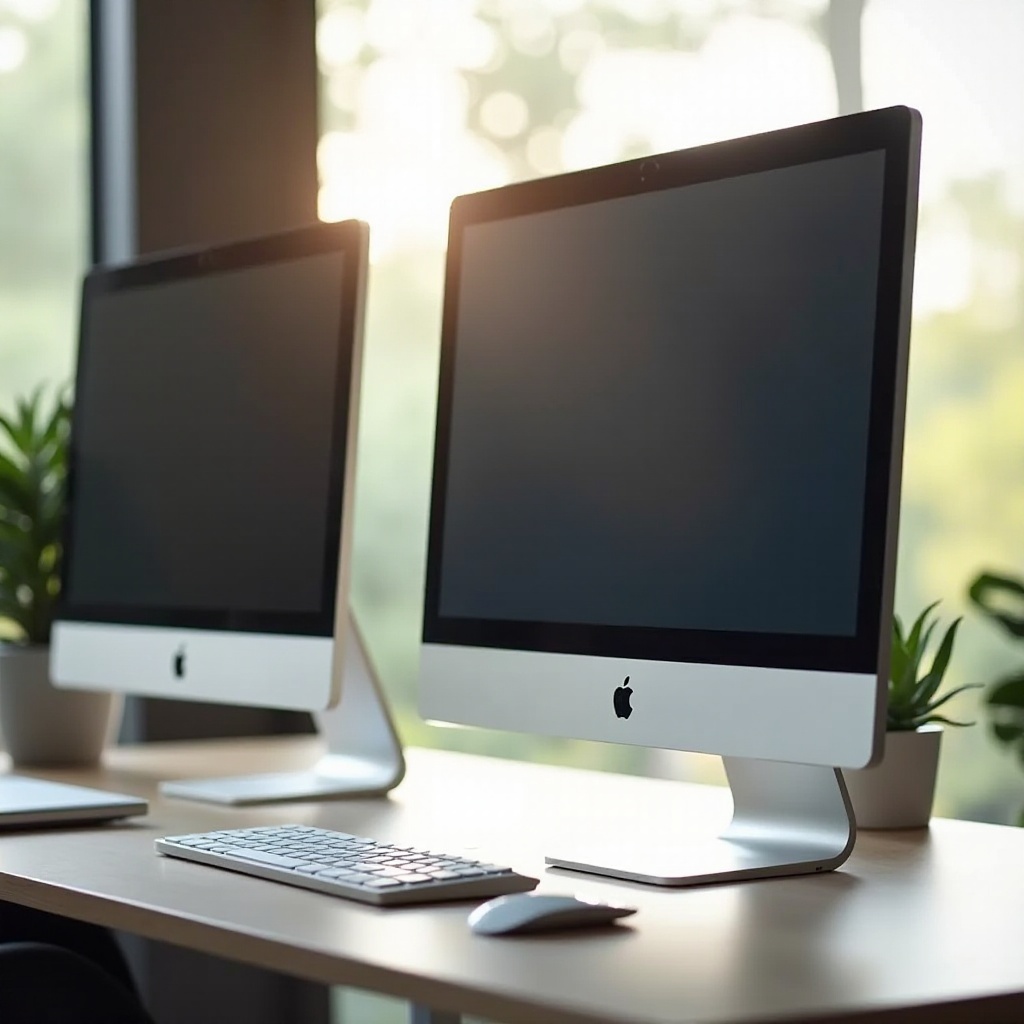
Selecting the right display can be daunting, but here are some standout options:
Option 1: Monitor A
With its vibrant 27-inch 4K display, Monitor A delivers superior clarity and color fidelity, ideal for professionals. It integrates seamlessly with iMac through USB-C connections and allows for ergonomic adjustments.
Option 2: Monitor B
Monitor B offers an economical option without sacrificing performance. Featuring full HD resolution with multi-port connectivity, it suits varied workspaces, providing flexibility and functionality.
Option 3: Monitor C
For those seeking expansive views, Monitor C’s 34-inch curved display coupled with UltraWide resolution affords panoramic visuals perfect for multitasking. Enjoy side-by-side applications with excellent color precision and brightness.
Setting Up Your Second Display with iMac
After selecting your monitor, proper setup is crucial to maximize its benefits.
Step-by-Step Setup Guide
- Connect the monitor to your iMac with an appropriate cable.
- Navigate to ‘System Preferences’ > ‘Displays’.
- Click ‘Arrangement’ and adjust the positioning to your liking.
- Designate which display is primary to show the dock and menu bar, while the other serves secondary tasks.
Common Troubleshooting Tips
If issues arise, confirm your connections are secure. Keep your iMac software updated, and for calibration challenges, adjust brightness and colors using calibration tools to maintain uniformity across screens.
Conclusion
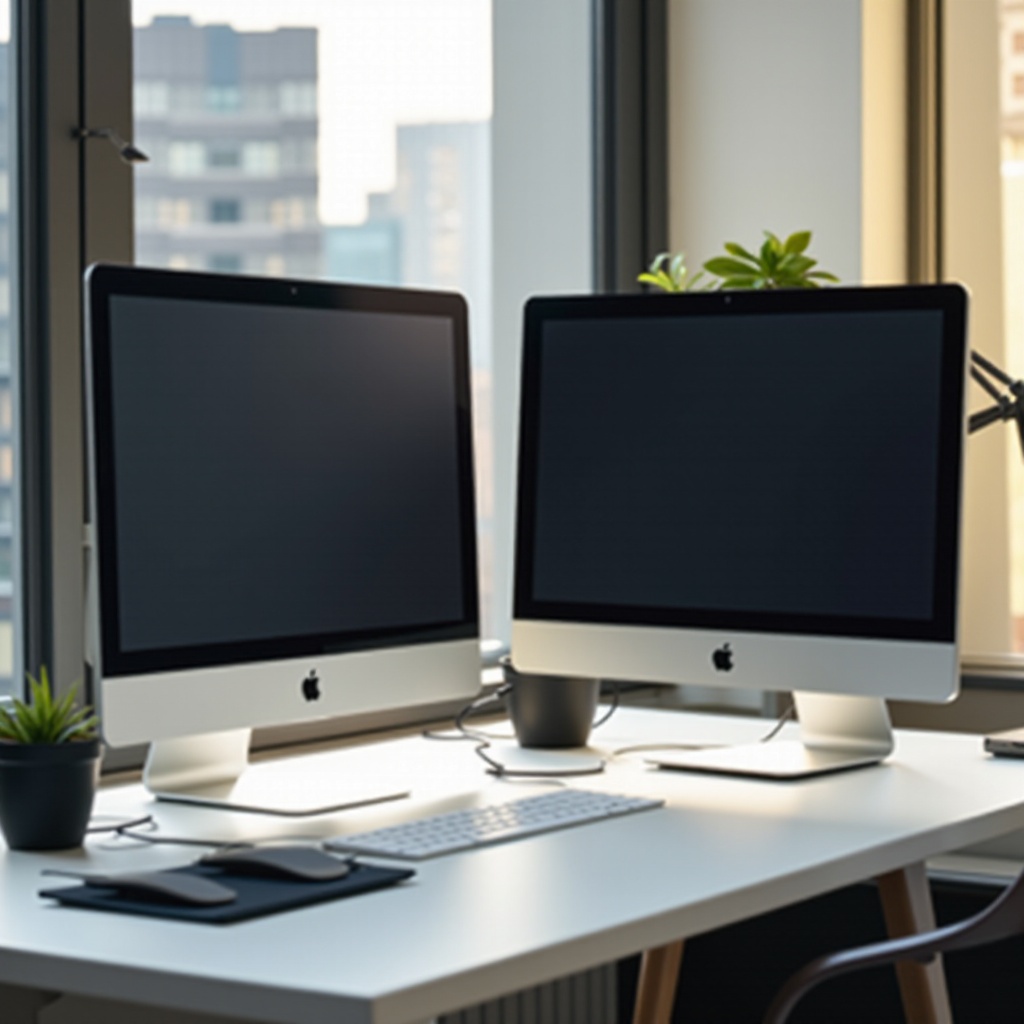
Incorporating a second display into your iMac setup can remarkably enhance both work efficiency and creative potential. By carefully choosing a monitor that fits your requirements for color precision, connectivity, and display size, you can create an optimized workspace tailored to your needs. Follow the setup steps to ensure a seamless and productive experience with your enhanced monitor setup.
Frequently Asked Questions
What are the best connection types for second displays?
For iMacs, Thunderbolt and USB-C are preferred for their high data transfer rates, while HDMI and DisplayPort are reliable alternatives.
How do I calibrate my second display for color accuracy?
Use built-in calibration tools or third-party calibration software to adjust the colors, ensuring consistency between displays.
Does using a second display affect my iMac’s performance?
A second display generally does not impact performance significantly, though you should ensure your system specs support dual monitor setups for heavy tasks.